Stop re-explaining your business to AI.
Run Your Team and AI on One Shared Brain Infrastructure You Control
One shared business brain. A separate, secure Client Workspace for every client. Apply your knowledge, frameworks and processes to each one, with agents and team members working together under rules you control.
- Permissions for each agent
- Separate Client Workspaces
- Visible handoffs and activity
Bring your knowledge together
Documents · client files · transcripts · messages
One shared brain
You control it
- Rulesone saved source
- Memoryreview and correct
- Skillsyour methods, once
- Accessper AI, set by you
The AI tools you connect
 ChatGPTWhole account · always ask
 ClaudeWhole account · safe actions
 GrokLook things up
 PerplexityLook things up
 LovableHarbor & Vale only
 Your agentsGeneral + specialty
A Client Workspace per client
- Harbor & ValeScoped
- NorthwindScoped
- Aster StudioScoped
Its Client Context + Standing Instructions.
Connects with the apps your agency already runs on.
 Gmail
 Slack
 Zoom
 HubSpot
 HighLevel
 Notion
 Google Drive
 Stripe
 ClickUp
 Google Meet
 ActiveCampaign
 Calendly
 Asana
 Dropbox
 QuickBooks
 Otter
 Granola
 Fathom
 Fireflies.ai
 Google Docs
 Google Sheets
 Google Calendar
 Airtable
 Monday
 Trello
 Mailchimp
 Typeform
 Zoho
 WhatsApp
 LinkedIn
 Facebook
 YouTube
 Reddit
 Google Ads
 Google Analytics
 Google Search Console
 Canva
 Figma
 Miro
 Jira
 Todoist
 GitHub
 Vercel
 Netlify
 Supabase
 Cloudflare
 PostHog
 Lovable
 Perplexity
 SendGrid
 AgentMail
 Retell
 Orgo
When Your Context Is Scattered, You Have No Control.
A client brief in one chat. A decision in another. Files in three different apps. You keep pasting the background, checking permissions and trying to remember which AI knows what.
 Notion“Which page has the client brief?”
- ChatGPT“Which client is this for?”
 Google Drive“Which folder has the final version?”
 Stripe“Did they pay the last invoice?”
- Claude“Can you share the background again?”
 ClickUp“Who owns this task now?”
 HubSpot“When did we last talk to them?”
- Grok“Where is that decision saved?”
You want AI doing more for your business. You also want to know what it can access, what it is doing and when it needs you.
The more AI you connect, the more control you should have.Why I built this
Why I Built Client Intelligence.
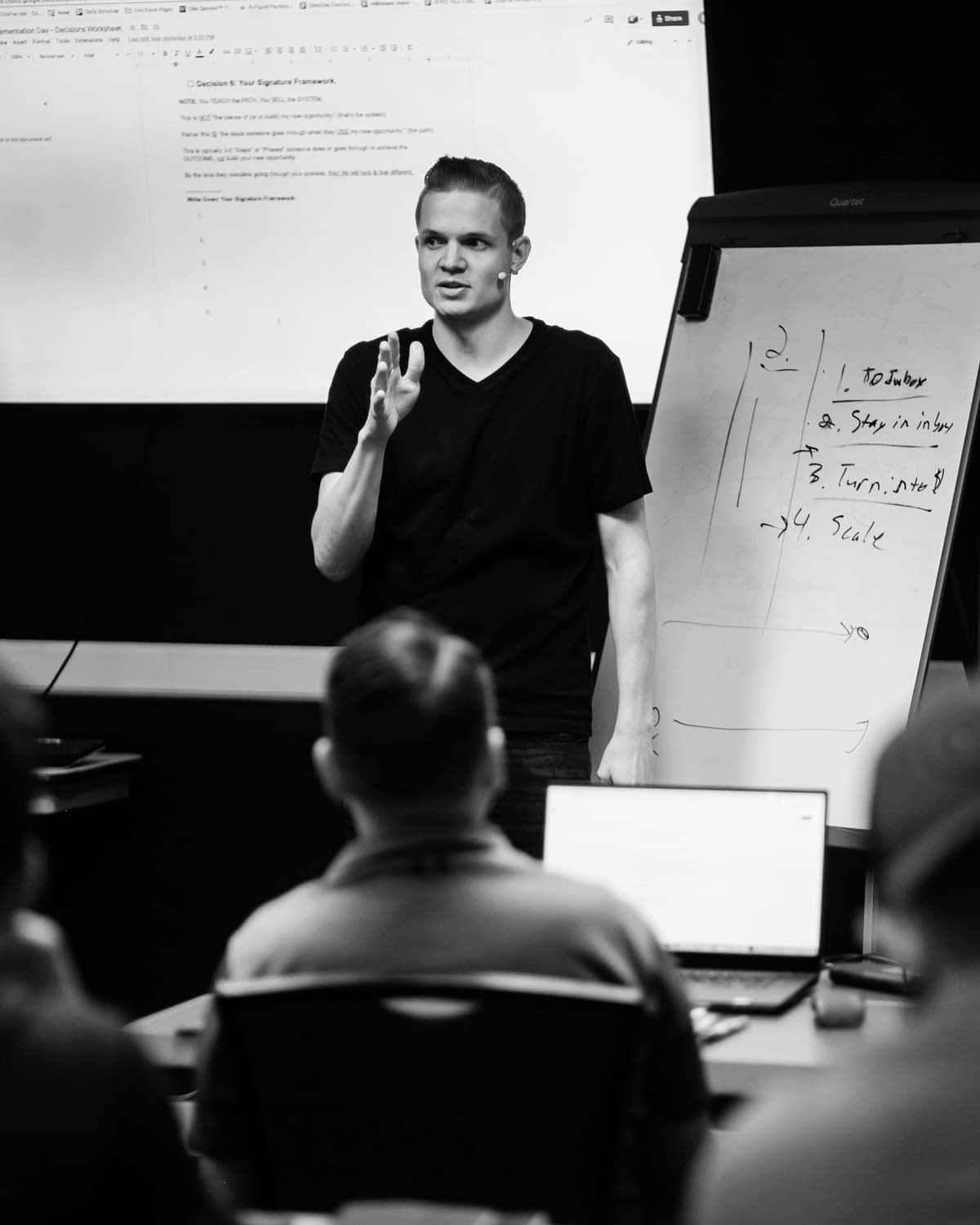
I wanted to use AI across my business. But every new connection meant another place to explain the work and another set of permissions to keep track of.
I wanted one place for what we know, a separate workspace for each client, and a clear way to decide which agents could use it. A place where I could hand off work and see what happened.
That is why I built Client Intelligence. So we can put AI to work and stay in charge.
Josh Forti Founder, Client Intelligence
One home for the whole business
Your Business Deserves A Home You Control.
Every client, every file, every call and every agent in one place you own. See the whole business at a glance, filed where it belongs, the way you want to see it.
Try it. Switch the tabs between Prospects, Active and Past. Every name here is made up.
Client Workspaces
Keep Your Clients’ Documents And Data Safe And Secure, Each In Its Own Workspace.
Every client gets a Client Workspace of their own: their files, contacts, meetings, tasks and money in one place, kept apart from every other client’s. Ask the chat inside one and it never reads another client’s.
Try it. Open its tabs. The chat beside it answers from this Client Workspace, its Client Context and its Standing Instructions, never another client’s.
A workspace of their own.
Each client’s documents and data live in its own Client Workspace, apart from every other client’s.
Only who you allow.
Your team and your agents reach a Client Workspace only through the access you give them.
Encrypted at rest and in transit.
All customer data is encrypted at rest with AES-256 and in transit with TLS, so your clients’ documents and data stay protected.
Your rules for every agent
Created For The Agent Economy.
Where you choose what each agent can see, what it can do and when it must ask. Give it the Client Workspaces and apps its job needs and nothing more. Change it, pause it or revoke it whenever the work changes.
Try the controls. Turn a Client Workspace on or off and change what the agent may do. The sentence says what it may now do.
Access you choose.
Allow Business Knowledge, the Client Workspaces and projects an agent needs for its job.
Approvals on your terms.
Let permitted work proceed, or have it wait for you. Actions that always require approval still ask.
Limits that stay in place.
Approval preferences cannot unlock an agent's own permissions, credentials, platform billing, infrastructure or permanent deletes.
A record you can follow.
See connected-agent calls and task activity. Open the source, inspect the result and decide what happens next.
See an agent handoff
Give Your Agent The Task. See What Happens Next.
Hand a task to a teammate or an agent, with its instructions and its documents. The agent takes it, does the work and brings it back for your OK, with every step on the record.
Try it. Open a task from the board, tick its steps and read its activity.
The context goes with the work.
The brief, its documents and its steps stay together, so whoever picks it up starts where the last one left off.
Access stays under your control.
Giving an agent a task does not give it new permissions. It must already be allowed to open what the task needs.
You can see where it stands.
Open the task on the Team tab, inspect what it made and read its activity.
Built-in convenience
Bring In Any File. Edit Documents And Build Spreadsheets Beside The Chat.
Word, PDF, Markdown and Excel files, Google Docs and Sheets, Notion pages. Bring them in and edit a document right beside the chat; a spreadsheet you bring in opens as its table. Write a Google Doc or Notion page back to where it came from, save your work as a new Google Doc or Sheet, or download it.
Try it. Click into the document and type. It saves as you go.
Every format comes in.
Upload Word, PDF, Markdown or Excel files, or bring them in from Google Drive and Notion.
Edit beside the chat.
Ask the chat to draft or change a document, then edit it yourself in the same window.
Send it where it goes.
Write your changes back to the Google Doc or Notion page it came from, save it as a new Google Doc or Sheet, or download it as Word, PDF, Markdown, HTML or plain text.
One shared brain
Put What Your Business Knows To Work.
Every call, email and document is filed to the client it belongs to and read for what happens next: a recap, who was there and the tasks it made. Ask the chat about a call and it opens it beside you.
Bring your knowledge together.
Documents, notes, transcripts and connected apps. Give the things your business knows a place to live.
Set the rules that matter.
Add a rule once, and every chat and agent in your business follows it.
Decide who can use it.
Choose access to your business, Client Workspaces and projects. Give every connected AI its own permissions.
Try it. Look through the meetings with this client and open the task the check-in made.
Keep your favorite tools
Your AI. Your Apps. One Place To Bring Them Together.
Connect ChatGPT, Claude, Grok, Perplexity and Lovable to your business brain. Give each its own permissions, then work in the app you prefer.
- ChatGPTAdd it as an app. Sign in once.
- ClaudeAdd a custom connector. Sign in once.
- GrokAdd a custom connector. Sign in once.
- PerplexityAdd a custom connector. Sign in once.
- LovableAdd a custom connector. Sign in once.
Also connect Codex and other apps that connect to a remote MCP server.
Bring your business apps.
Connect the tools your team runs on, including your CRM, Gmail, Google Drive, Slack, Zoom and Notion.
Give incoming knowledge a home.
Review the files, notes and connected-app material that came in, and where each is filed.
Keep your way of working.
Use a connected AI, talk with General, or give a specialty agent a job. They work with the knowledge and access you set.
The models you choose
Frontier Models. Your Card or Your Keys.
Your AI runs on a card you save or on your own provider keys, which an owner adds once in Settings.
For a limited time, founding members can also sign in with their ChatGPT or Grok subscription and use it for their own chats here.
Your keys, your bill.
Each AI provider bills your business directly for what runs on its key.
Put your agents to work.
Chat with General and your specialty agents on the model you choose, with your instructions and permitted business context.
One brain behind every model.
Whichever model you pick, it works from the same Business Knowledge, Client Workspaces and rules.
Privacy and control
Your Business. Your Clients. Your Rules.
The knowledge in your business is valuable. Put it in a place where access is a choice, approvals are visible and you can follow the work your agents do.
Choose what gets shared.
Set access for each connected agent. Use Client Workspaces and project permissions to give it the right context for the job.
Keep personal context personal.
Your team shares Business Knowledge while each person keeps their own Team Seat Personal Brain.
Change your mind.
Adjust permissions, pause a connection or revoke its future access. Your business can change without leaving old access in place.
Your knowledge is not our training data.
Client Intelligence does not use your client data or proprietary frameworks to train AI models.
The AI providers and connected apps you choose process the context needed for your requests under their own terms. Read how we handle your data.
Picture it
Your Next Monday Could Look Different.
The same clients. The same work. A clearer way to put your AI to work and stay in control.
Without it
You open Claude and paste in the client background again. ChatGPT has a different version of it. The call transcript is still in Zoom, the file is in Drive, and the decision you made six weeks ago is somewhere in your head.
A client asks what you agreed. You think you remember. You are not sure.
With Client Intelligence
You open Client Intelligence. Every AI you connect already knows your rules. You give a clear task to the right agent and see it on the Team tab.
A client asks what you agreed. Your connected AI follows the rules you set. You check what it did and follow the work without piecing it together across five apps.
Demo it with your real business
Bring Your Own Work.
Connect the apps you use, add the context that matters and hand off a real piece of work. See what changes when your AI works from one shared brain.
Your business brain. Your own AI keys.
- Connect the apps you already use.
- Bring in the knowledge that matters: files, notes and calls.
- Add a card or your own Anthropic and OpenAI keys after your interview.
- Hand off a real piece of work and follow it to done.
Before you connect your business
Good Questions. Clear Answers.
No. Founding members pay nothing to use Client Intelligence. Your AI use runs on a card you save, billed each week for what you use, or on your own Anthropic and OpenAI keys, with no charge from us. For a limited time, founding members can also sign in with their ChatGPT or Grok subscription and use it for their own chats here.
Connect ChatGPT, Claude, Grok, Perplexity, Lovable, Codex and other apps that connect to a remote MCP server. Setup differs by app. Each connection has its own access, action and approval settings.
Choose a recipient, attach an existing document and explain the work. The recipient must already have access to that document; assignment does not grant new access. A connected outside agent receives the assignment when it next checks in with Client Intelligence. Open that app and ask the agent to check for assigned work. Follow the task and its activity here.
Choose where it can reach, what it can do and which actions need approval. Some permitted actions can run under the approval settings you chose. Those settings do not remove the platform’s restrictions on billing, credentials, infrastructure, permanent deletion or an agent changing its own permissions. You can change access, pause a connection or revoke it.
Each client has a Client Workspace for its files, instructions, projects and work. You choose which workspaces and projects an agent can access, and those permissions are checked when it asks for information or takes an action. A connected AI starts with everything you can reach, and you can narrow it before you allow it. Each Client Workspace keeps its own Client Context and Standing Instructions, and its chat is also told your Business Context and Default instructions.
Open the documents on the task, review what it made, and follow the task’s activity to see who handed off the work and what changed. Connected-agent activity records each call it made. Different AIs can phrase an answer differently even when they use the same source; shared knowledge is not a guarantee that every answer is correct.
Bring files, folders and notes, or connect supported business apps such as Gmail, Google Drive, Docs, Sheets, Calendar, Slack, Zoom and Notion. CRM connections include HighLevel, HubSpot, ActiveCampaign and Zoho. What comes in and when it syncs depends on the connection and its settings. Agent imports wait for your yes unless you choose Auto Approve All.
Client Intelligence does not use your client data or proprietary frameworks to train AI models. To carry out your requests, relevant context can be processed by the AI providers and connected apps you use. Their terms and privacy settings also apply. Our Privacy Policy explains how Client Intelligence handles your information.
Your team works from shared Business Knowledge while each seat keeps its own Team Seat Personal Brain. Connections can belong to a person or the account. Workspace, project and document permissions determine what each person or agent can use.
Everything you get
The Brain. The Agents. The Tools To Get It Done.
One place to bring together your knowledge, your client work and the agents you trust with it.
- One shared business brainYour knowledge, rules and working context in one place.
- Agent handoffs on the Team tabGive work to a named person or agent, with its document, instructions and activity.
- A Client Workspace for every clientTheir files, contacts, projects and instructions, under the access you choose.
- The AI tools you already useConnect ChatGPT, Claude, Grok, Perplexity, Lovable, Codex and other MCP apps.
- Frontier models on your own keysRun the models you choose on the AI provider keys your business adds.
- General and specialty agentsGive an agent a job, your instructions and the skills it needs.
- Documents and spreadsheetsEdit documents, and spreadsheets made here, beside the chat; write a Google Doc back or download your work.
- Permissions and approvalsChoose what each agent may see and do, and when it needs your OK.
- Your connected business appsBring in knowledge and take permitted actions through the tools you use.
- Meeting recaps and the tasks they makeEach recorded call filed to its client, with who was there and what happens next.
- A Team Seat Personal Brain for each personShare Business Knowledge while each person keeps their own.
- An activity record you can followSee handoffs, changes and the work waiting on you.
Put Your AI To Work. Keep Control Of Your Business.
You built something worth protecting. Your knowledge, your methods and your clients’ trust. Give your AI a way to work with it under the rules you choose.
Bring your knowledge together. Connect the AI you already use. Hand off the work with the context and control it needs.
One shared brain. You control it.
P.S. Give your AI the context it needs, keep client work in Client Workspaces and follow each handoff on the Team tab.